Uploading Your Content to Scatter
Uploading your media via Scatter is the recommended way to launch a collection and Scatter's only managed hosting solution. It handles hosting for you and lets you edit traits directly in the UI. You do not need to write JSON, change the Base URI, or pay for a hosting provider.
If you are an advanced user and want to host yourself, you can skip this step and change your Base URI in the Contract tab.
Before you start, make sure your collection is deployed on Scatter. If you haven't deployed yet, start with Deploying Your Collection.
Preparation
Your files must be prepared correctly so metadata generates and uploads cleanly.
Scatter uses 1-based indexing, so files must start at 1.
- Correct:
1.png,2.png,3.png... - Incorrect:
0.png,image_1.png,nft-1.png - Zero index warning: Do not label your first image
0or0.png. - No custom prefixes: File names must contain only the number and extension.
- Supported formats include JPG/JPEG, PNG, GIF, WEBP, SVG, MP3, WAV, OGG/OGV, WEBM, MP4, MOV, GLB, GLTF, OBJ, STL, and 3MF.
- Put all media in a single folder and upload the raw folder. Do not zip it.
- If you already have metadata, JSON files can be named
1.json,2.json,3.jsonor1,2,3(no extension). See Metadata.
Uploading Media
Drag your media folder into the upload drop zone.
Uploader reads files in numeric order, and it does not randomize for you. If your filenames are out of order or not numeric, you will see an error in the Problems tab.
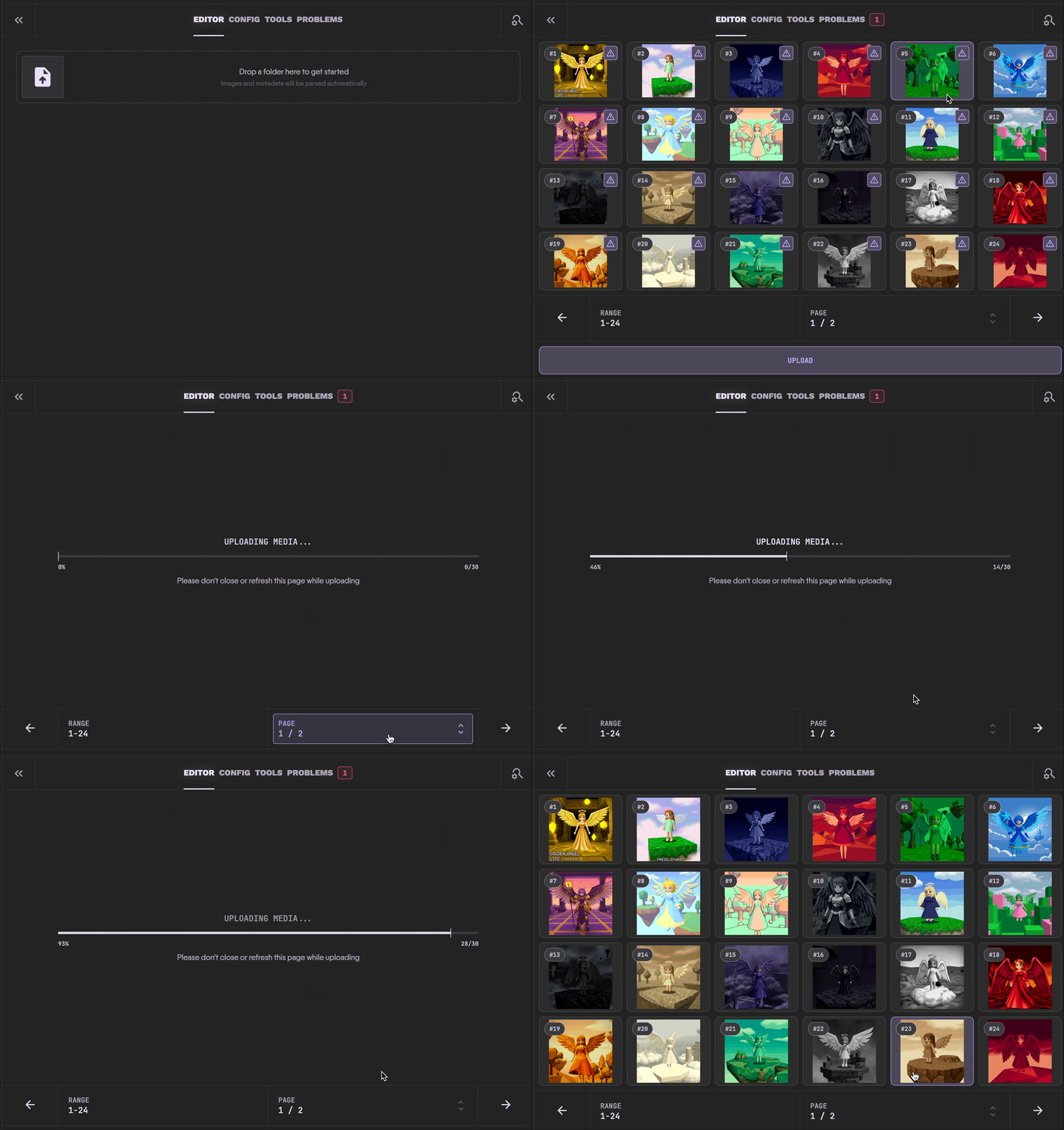
Metadata Options
You can upload with metadata or without it.
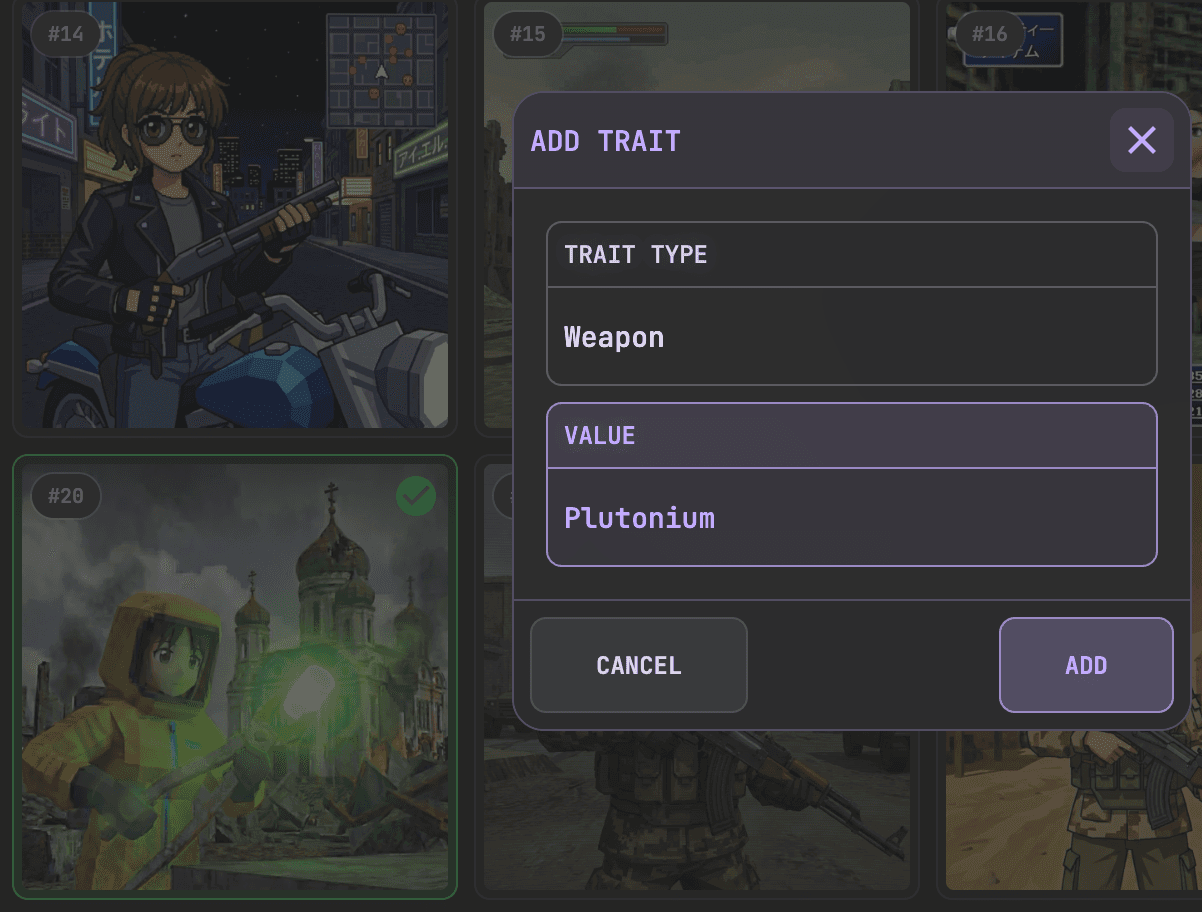
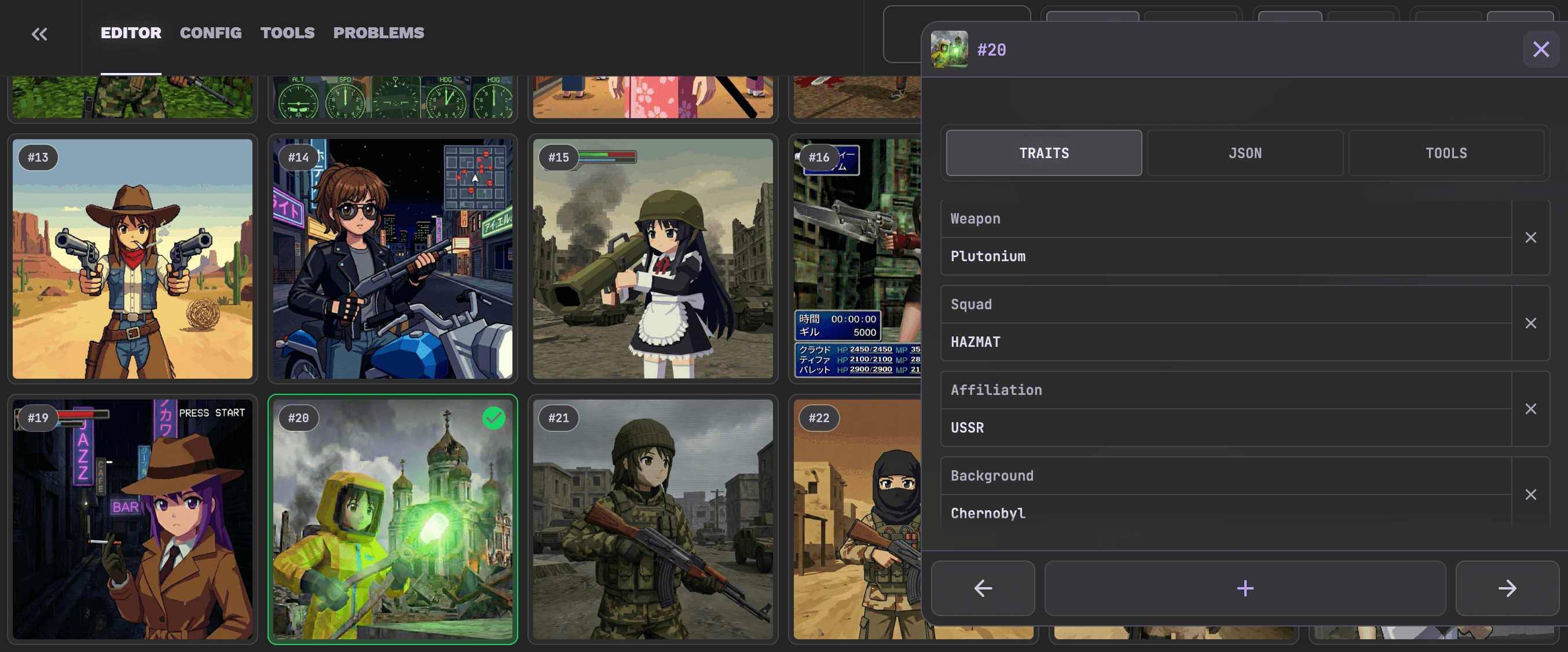
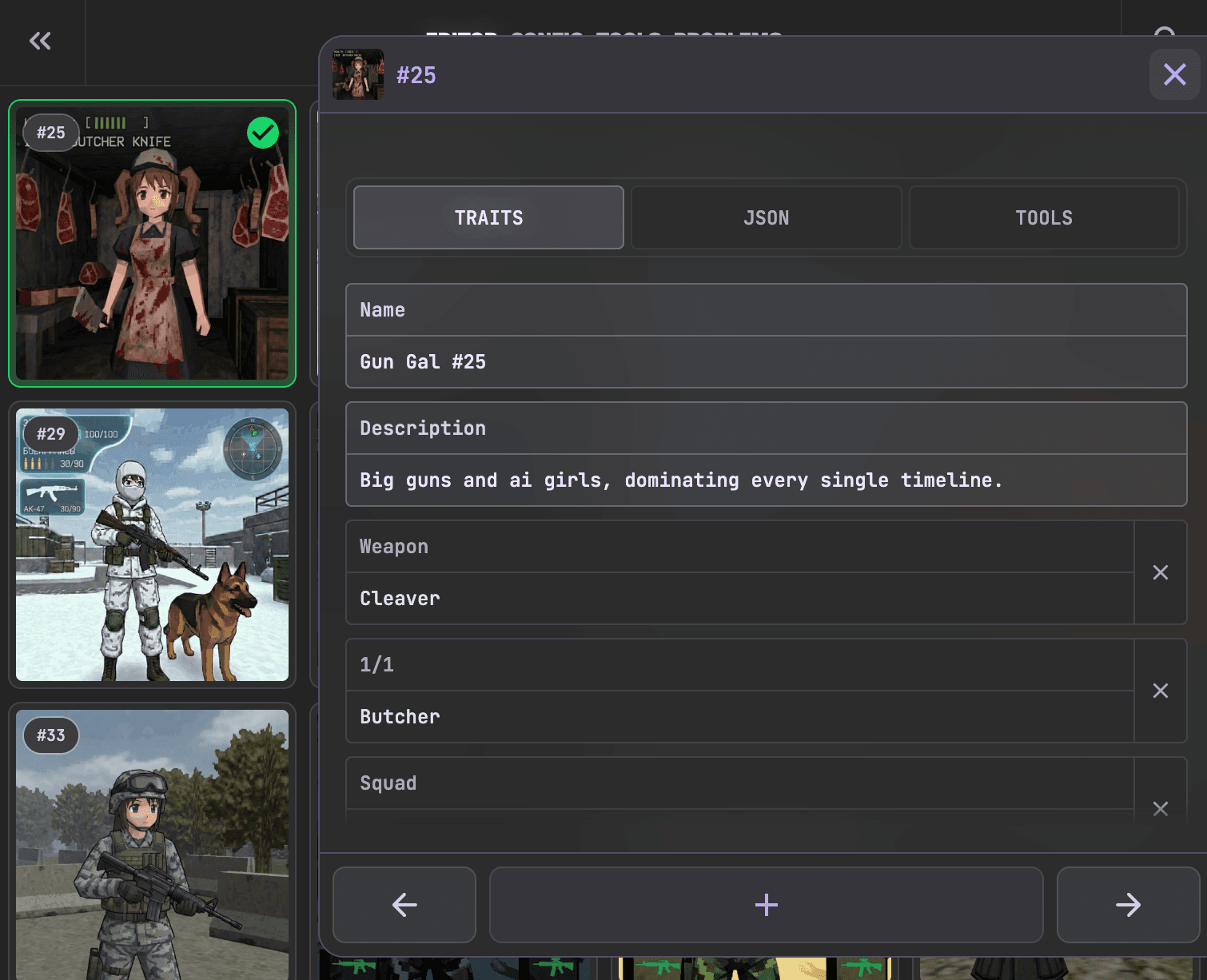
- Without metadata: Uploader generates metadata on the spot for each media file. You can edit traits by clicking each token.
- With metadata: Upload your JSON files alongside media and then edit or fine-tune traits as needed.
To keep metadata clean and consistent, ensure every token shares the same trait types (Background, Hair, Eyes, and so on). Create rarity by making certain values appear less often.
Collection-Wide Settings
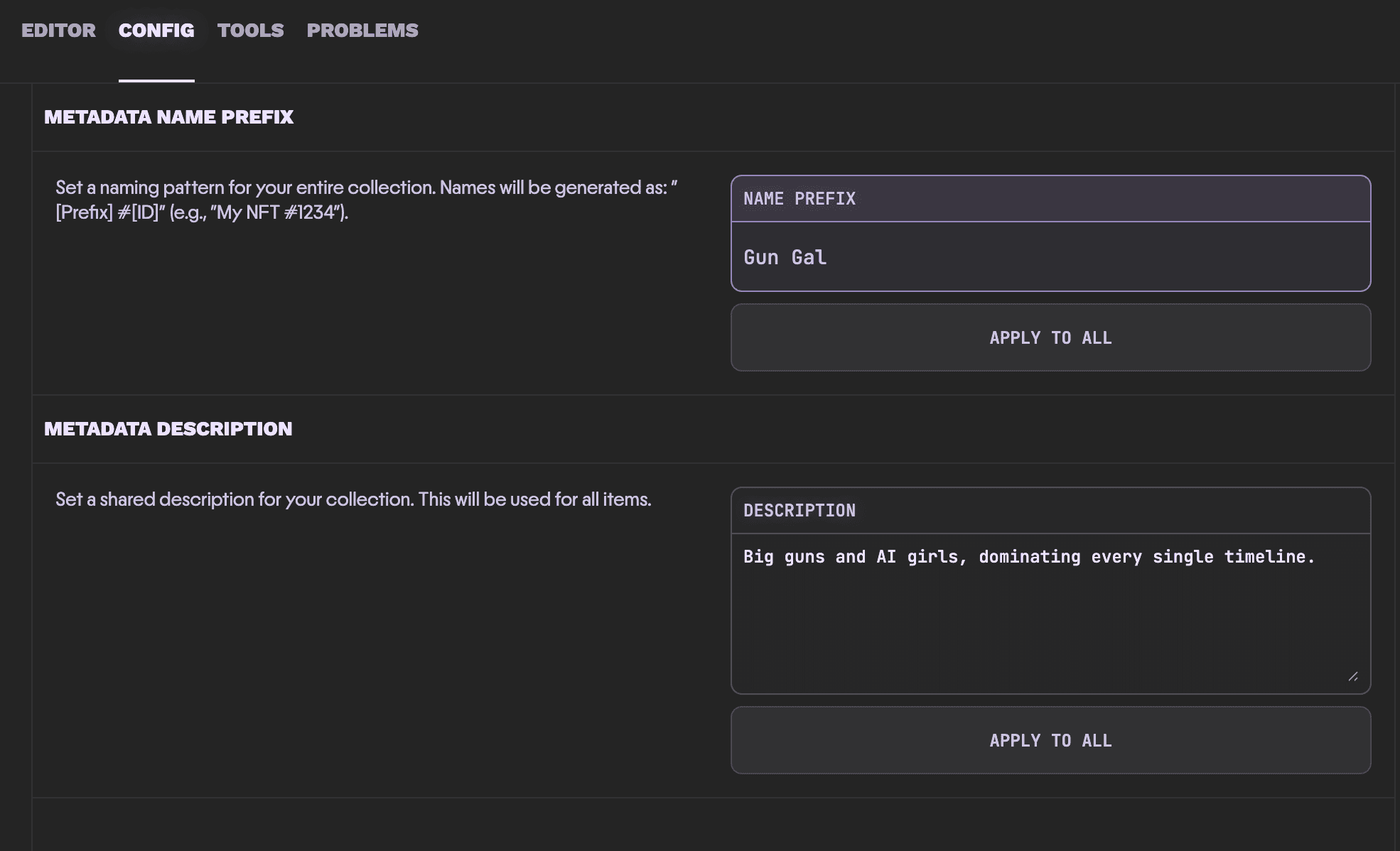
Under Config, set a Name Prefix and Description. These apply to every token in the collection.
Token Tools
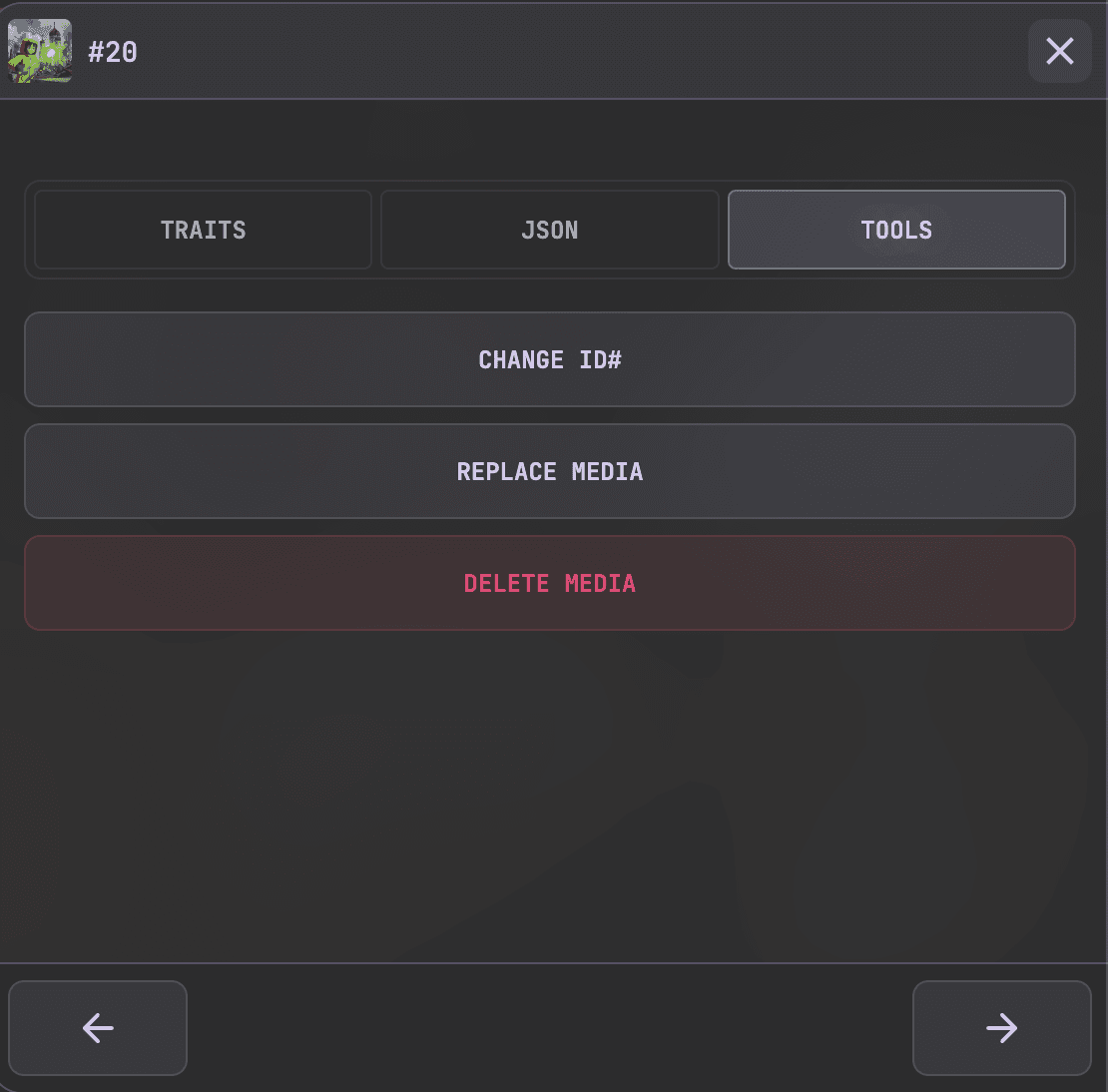
When a token is selected, you can:
- View its JSON.
- Change the token ID.
- Replace the media.
- Delete the media (leaving it blank).
Smart Uploads and Maintenance
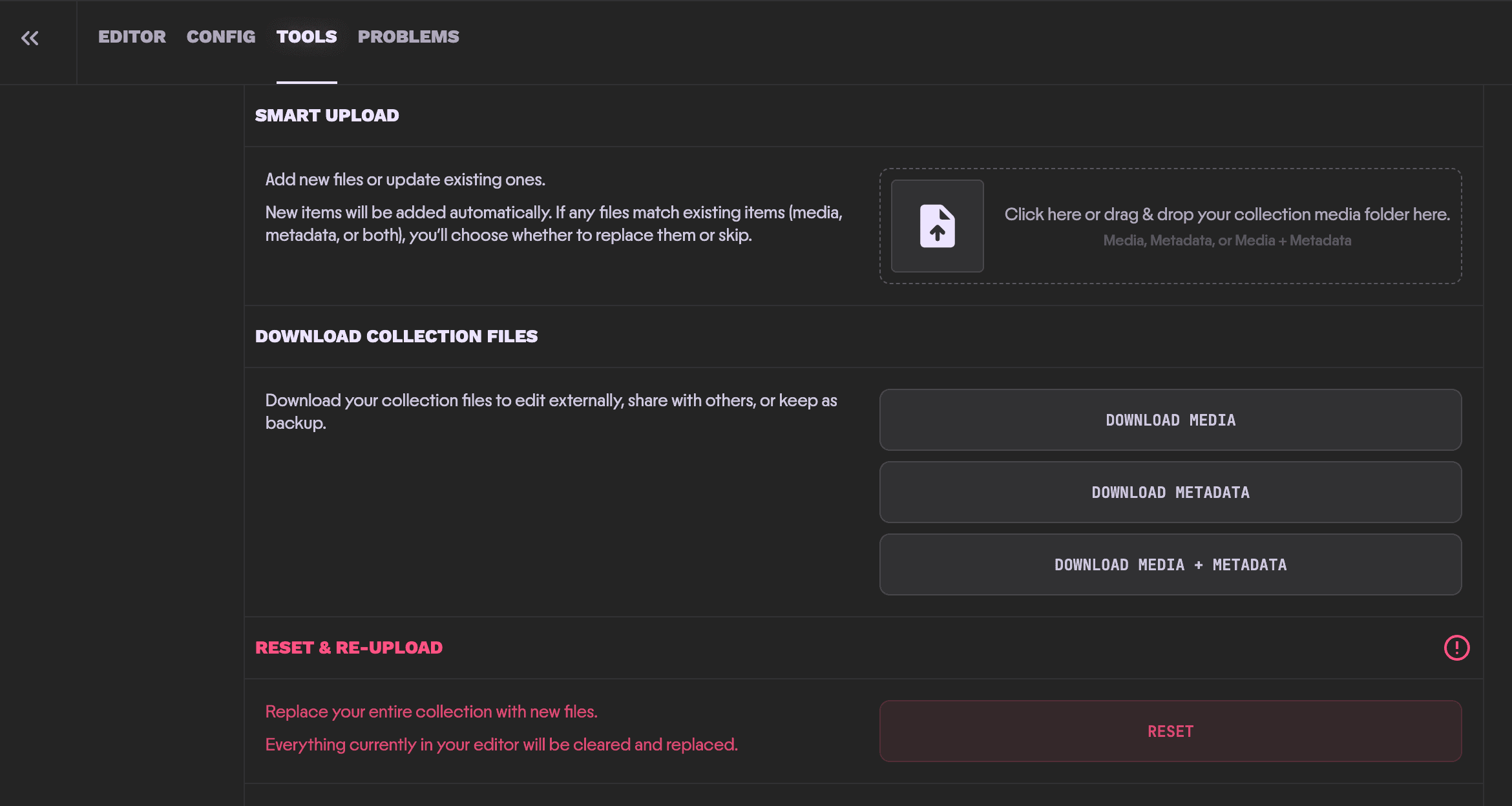
Under Tools, you can upload additional media or metadata at any time. The Smart Upload drop zone accepts images, metadata, or both.
- Upload in batches. If your collection is 3,000 tokens but only 1,000 are ready, upload the first 1,000 and add the rest later.
- If you want to increase collection size, update Max Supply in the Contract tab first, then upload the new files.
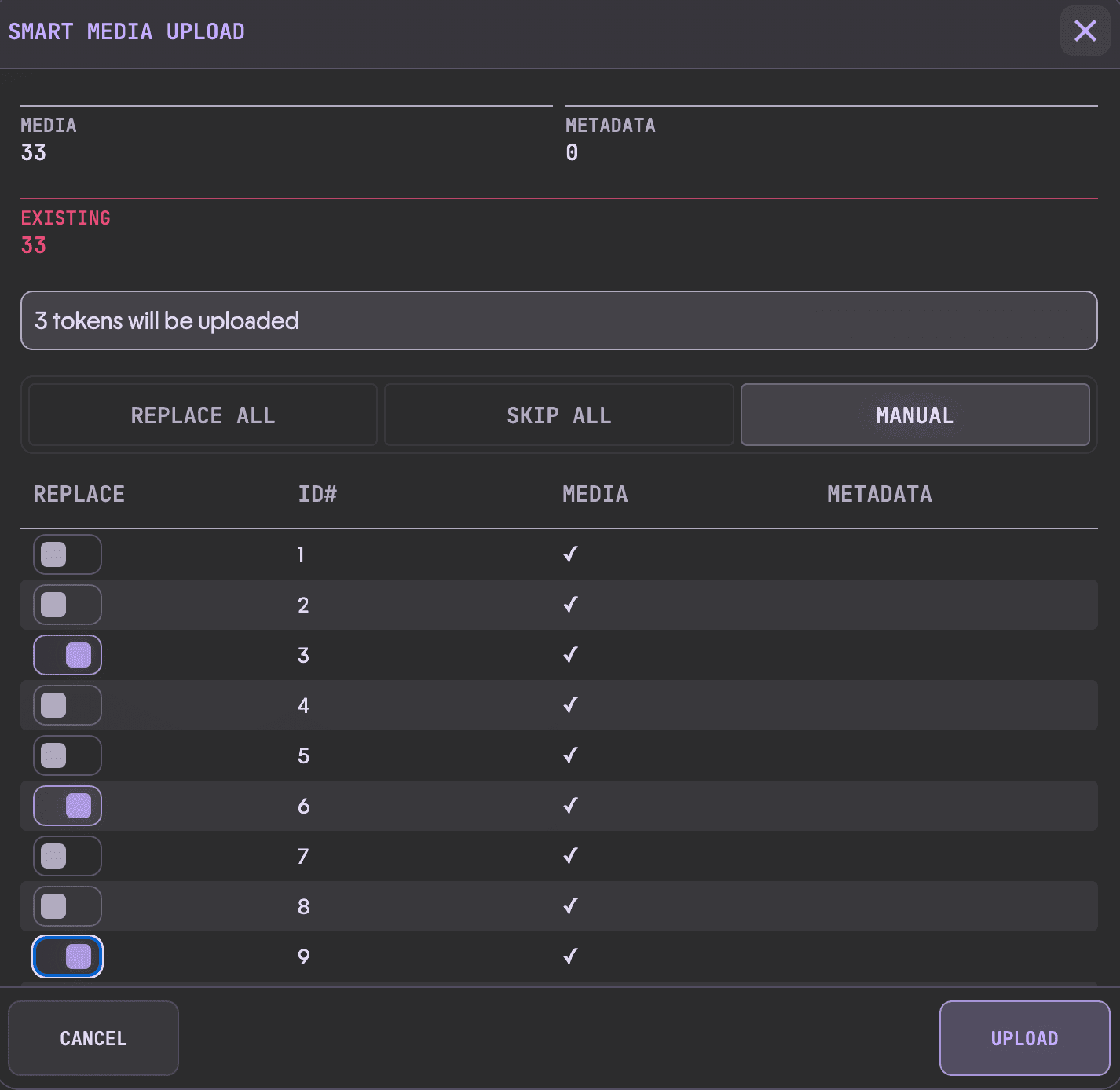
- Replace All replaces every conflicting token ID in the new upload.
- Skip All ignores conflicts when file numbers already exist.
- Manual lets you choose which conflicting token IDs to replace.
Reset
Reset & Re-Upload permanently deletes existing media and metadata. Use it only if you are starting over. THIS IS IRREVERSIBLE! MAKE SURE YOU HAVE A BACKUP FIRST!
Self-Hosting (Advanced)
The Scatter Uploader is Scatter's only managed hosting solution. Advanced users who need IPFS must manage and pin the content themselves:
- Pinata IPFS guide: IPFS Self-hosting
- Filebase IPFS guide: Filebase for IPFS
If you need help, open a ticket in Scatter Discord ↗ and we will be happy to help you.
Next Step
Continue with Mint Lists.